
Getting started
- Open app.versecraft.ai and create an account or sign in.
- Choose Creative for unlimited building blocks, or Survival for resource gathering and crafting.
- Create a world, join using a world code, or follow a friend’s invite link.
- On desktop, click into the game when prompted to capture the mouse. On tablet, use the on-screen controls.
The crosshair indicates where you aim. The hotbar contains nine quick-access slots. Select a slot before using or placing its item. Survival adds health, hunger, and resource management.
Use your account’s saved-world list to return to a world. Server saves are not a guarantee of indefinite retention or recovery.
Keyboard & mouse
These shortcuts apply while gameplay is active. Typing in chat or opening a menu suspends movement input.
| Action | Control |
|---|---|
| Move | W / A / S / D |
| Look / aim | Mouse movement (mouse captured) |
| Jump | Space |
| Sprint | Hold Shift |
| Mine / attack | Left mouse button; hold to mine |
| Use / place | Right mouse button |
| Select hotbar slot | 1–9 or mouse wheel |
| Inventory | E |
| Chat | T |
| Send chat | Enter or Send button |
| Close chat | Escape or Close button |
| Pause menu | Escape or I |
| Toggle flight | Shift + F |
| Fly up | Space |
| Fly down | Ctrl |
| Return to surface | R |
Special interactions
- Till soil: in Survival, aim at dirt or grass and Shift + left-click.
- TNT: right-clicking TNT ignites it. Shift + right-click bypasses TNT ignition, allowing placement against it when possible. This is not a universal bypass for every workstation interaction.
- Harvest: mature wheat can be harvested with the primary action. Use / Place also handles supported gathering interactions.
TNT is destructive. Stand back after ignition and avoid testing explosives beside builds you want to preserve.
Fly mode
- Press Shift + F to toggle flight.
- Move horizontally with W / A / S / D.
- Hold Space to rise and Ctrl to descend.
- Hold Shift for faster movement.
- Press Shift + F again to return to normal movement.
Flight replaces falling with controlled vertical movement. Disabling it restores gravity: descend to a safe location first. This is VerseCraft’s toggle, not a double-tap-Space gesture.
On tablet, tap Fly, then use Up and Down. The shared flight toggle is not currently limited to Creative by the client.
Tablet controls
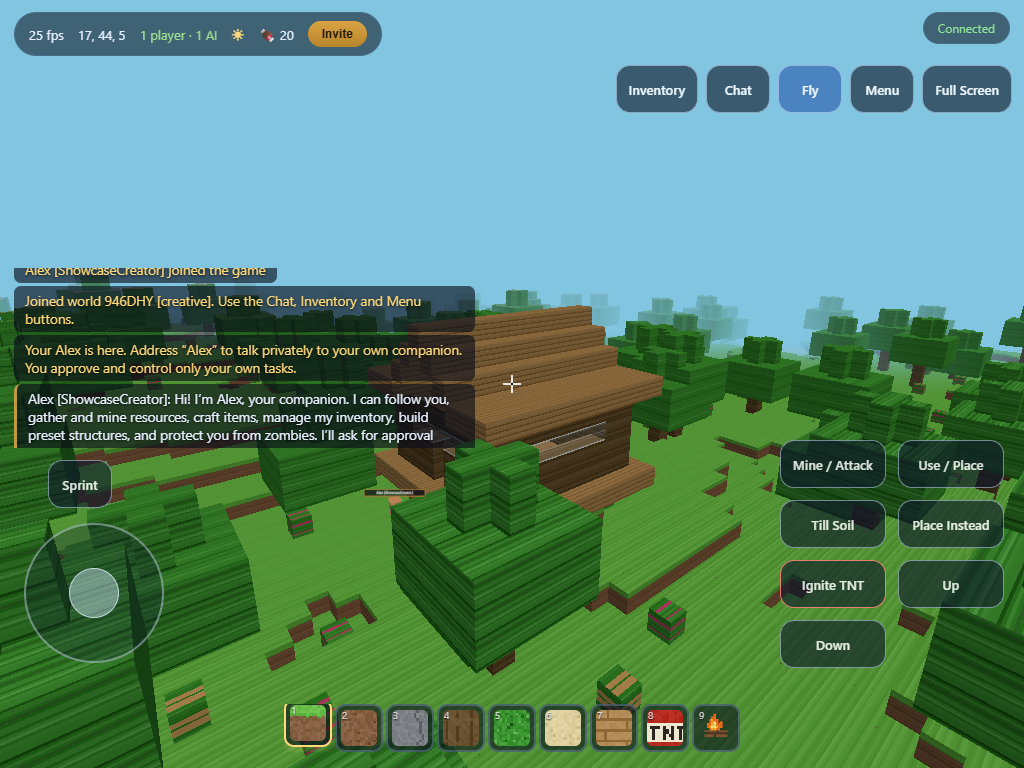
- Move: drag the left joystick. Its distance from the center controls movement strength.
- Look: swipe the unobstructed look area on the right.
- Actions: hold Mine / Attack, tap Use / Place, and use Jump and the Sprint toggle.
- Hotbar: tap a slot to select it.
- Special actions: Till Soil works on suitable Survival ground; Place Instead attempts block placement without the usual use interaction; Ignite TNT explicitly lights targeted TNT.
- Menus: Inventory, Chat, and Menu open their corresponding panels.
- Chat: use the tablet’s software keyboard, then Send. Replies appear in chat history; open Chat to read and scroll the expanded history.
- Fullscreen: tap Full Screen where supported. Browser restrictions may prevent fullscreen.
Adjust the layout
In Menu → Tablet settings, adjust sensitivity, left-handed layout, control size, opacity, and rendering quality. Preferences are saved in the browser. Enlargement is suppressed on screens 650 CSS pixels high or less to avoid crowding.
Auto / Touch / Mouse & Keyboard selects the input mode. Multiple fingers can move, look, and act simultaneously. Use landscape where possible. Physical iPad Safari and Android Chrome validation is still pending.
Block reference
The reference below is generated from the game’s block definitions. Creative palette means selectable in the current Creative inventory; other blocks occur in the world or are obtained through gameplay. Air is empty space and is omitted.
Grass
Natural surface block; suitable for tilling and berry planting in Survival.
Creative paletteDirt
Earth material; can be tilled in Survival.
Creative paletteStone
Rock material used in mining and construction.
Creative paletteWood
Tree material for gathering and building.
Creative paletteLeaves
Tree foliage and decorative greenery.
Creative paletteSand
Natural sandy terrain.
Creative palettePlank
Wooden building material.
Creative paletteGlass
Transparent but solid building block.
Creative paletteWater
Water terrain; suitable deep water supports fishing.
World / gameplay block or stateCobblestone
Rough stone construction material.
World / gameplay block or stateCoal Ore
Coal-bearing ore.
World / gameplay block or stateIron Ore
Iron-bearing ore.
World / gameplay block or stateCrafting Table
Stand nearby to unlock tool and armor recipes in the inventory.
World / gameplay block or stateFarmland
Tilled ground used for planting wheat seeds and potatoes.
World / gameplay block or stateWheat Sprout
Growing wheat; a crop state, not a standard palette block.
World / gameplay block or stateWheat
Mature wheat ready to harvest.
World / gameplay block or stateFurnace
Processes supported inputs using fuel in Survival.
Creative paletteChest
Stores items in Survival.
Creative paletteTorch
Lighting block.
Creative paletteBerry Sprout
Early berry growth stage.
World / gameplay block or stateBerry Bush
Berry plant used for gathering.
World / gameplay block or statePotato Sprout
Growing potato stage.
World / gameplay block or stateMature Potatoes
Mature potato crop.
World / gameplay block or stateCampfire
Camp equipment and light source.
Creative paletteTNT
Explosive block. Ignition is destructive: stand back.
Creative palettePrimed TNT
Ignited TNT state, not a standard palette item. Keep clear.
World / gameplay block or stateGold Ore
Gold-bearing ore.
World / gameplay block or stateDiamond Ore
Diamond-bearing ore.
World / gameplay block or stateBed
Furniture block.
Creative paletteDesk
Decorative furniture block.
Creative paletteTable
Decorative furniture block.
Creative paletteChair
Decorative furniture block.
Creative paletteNames and palette membership are a checked-in snapshot in this separately deployed website. Regenerate it after changing game block definitions.
Inventory & crafting
Creative
Open Inventory. Select a hotbar slot, then choose a palette block to assign it to that slot. Creative provides unlimited blocks; the palette is not a list of every block state in the world.
Survival
Your inventory has nine hotbar slots and 27 main slots. Desktop players can drag stacks between slots. Tablet players tap a nonempty source, then a destination to move or swap the whole stack. Tap the source again or Cancel selection to cancel. Partial-stack transfers are not currently offered by that interface.
Crafting
Recipes show required ingredients and what you have. Select an available recipe to craft it. Tools and armor require a nearby Crafting Table; stand close to one and reopen inventory to refresh availability. Suitable tools improve mining speed; harvesting some ores requires sufficient tool tier.
Chests & furnaces
In Survival, use a chest with an item selected to store one. Use an empty hotbar slot to open it; tap a stored stack to withdraw one. Use a furnace with a supported input item or coal to load one; otherwise use it to open the station. Tap furnace output to collect one. Follow the in-game station hints for accepted inputs.
Survival essentials
- Gather: mine blocks, collect materials, and consult recipes before crafting tools.
- Farm: till dirt or grass, select wheat seeds, and use farmland to plant. Mature wheat can be harvested. Potatoes plant on farmland; berries can plant on suitable grass or farmland.
- Eat: select a consumable and use it. An applicable targeted interaction, such as gathering or loading a station, may take priority.
- Fish: select a fishing rod and use open water at least two blocks deep. Wait for the game’s instruction, then use the same water to reel in.
- Animals: wheat can be used to feed eligible nearby animals. Aim directly at the animal.
- Night: prepare for hostile creatures; watch health and hunger.
- Death: use the respawn button when the death screen appears. The R shortcut returns a living player to the surface; it is not the death-screen respawn button.
Refer to on-screen feedback for failed interactions. This guide does not promise fixed growth times, damage values, or item recovery rules.
Play with friends
Create or join a world, open the invite controls, and share its link or code. Friends sign in and join the same world. Each world supports up to 10 human players.
Use chat to coordinate. Keep world codes and invite links private if you do not want others joining. A saved world lets you continue later while it remains available on the server.
Connect an AI through MCP
VerseCraft can connect a compatible AI client through the Model Context Protocol (MCP). MCP can inspect your owned worlds and ask your connected personal Alex to prepare bounded build previews. It cannot approve a build, start work, undo work, or directly edit blocks: review every preview and approve it in the game.
1. Create a temporary MCP token in Profile
- Open app.versecraft.ai and sign in to the account that owns the world.
- Choose Profile in the lobby, then find Connect an AI through MCP.
- Select Create MCP Token and copy the one-time token. The Profile panel also provides the server URL and a Revoke All MCP Access button.
The token is a password-like bearer credential. It expires after one hour, is invalid after an app restart, and is cleared from the Profile panel when it closes.
2. Configure your MCP client
Add a remote Streamable HTTP server using this URL:
https://app.versecraft.ai/mcpSet this request header in the MCP client:
Authorization: Bearer YOUR_TOKENThe server returns an MCP session ID during connection; compatible MCP clients keep and send it automatically. Do not put the token in the server URL, a prompt, chat, screenshots, source control, or a public configuration file.
3. Select a world and propose safely
Use the MCP client to list and select one of your owned worlds. To survey or propose a build, you must also be connected to that same world in VerseCraft with your personal Alex active. MCP proposals remain awaiting approval; inspect the in-game preview and use Alex or the task panel to approve or reject it.
MCP supports bounded world reads, catalog build surveys, catalog build proposals, and bounded custom structural-blueprint proposals. Custom proposals are placement-only and limited to the blocks and size limits shown by the MCP client.
Revoke access
Return to Profile → Connect an AI through MCP and choose Revoke All MCP Access. This immediately invalidates every active MCP token and disconnects MCP sessions for your account.
Only connect MCP clients you trust. If a token is exposed, revoke it immediately and create a new one when needed.
Meet Alex
Alex is your personal AI companion. Use in-game chat to talk and discuss supported tasks. Review proposed plans and use the displayed approval controls where required. Do not treat a proposed plan as completed work.
AI must be enabled and configured on the server. Responses may be unavailable or fail, and unsupported requests may not be performed. Start with a small request and inspect the result.
Choose Alex’s shirt color in your profile; the change applies on your next join. Avoid sharing secrets or sensitive personal information in chat.
Profile settings
Sign in and open Profile from the lobby. You can view your account username, choose Alex’s shirt color, and save or cancel changes.
- Email address: optional stored profile information. It does not currently enable email sending, verification, or account recovery.
- Wallet address — ARC mainnet: optional ETH-compatible address, formatted as 0x followed by 40 hexadecimal characters. It is stored only; no wallet connection, ownership verification, network verification, or transactions occur.
Never enter a private key or seed phrase. A wallet is not required to play.
Troubleshooting
The mouse does not move the camera.
Close chat and menus, then click into the game when prompted. Desktop look uses mouse capture (pointer lock). Escape releases it. Check the selected input mode if you attached a keyboard or mouse to a tablet.
I can type but cannot see replies.
Open Chat to expand the history and scroll to recent messages. Close the software keyboard if it covers the view. Reload after a website/game update. If no response arrives, check the connection and whether AI is configured.
The tablet view is crowded or slow.
Try landscape, close unnecessary panels, and select low rendering quality in Tablet settings. Adjust opacity or handedness. Browser and device support vary.
Fullscreen does not work.
Fullscreen depends on browser support and permissions. Use the game’s Full Screen button directly; if rejected, play in the ordinary browser view.
I lost my connection or Alex is unavailable.
Check your network and rejoin through the lobby. A server restart or AI-provider failure may require waiting. Do not assume an interrupted task completed; inspect the world after reconnecting.